









Microsoft Office 2024 Activation: Common Problems and How to Fix Them

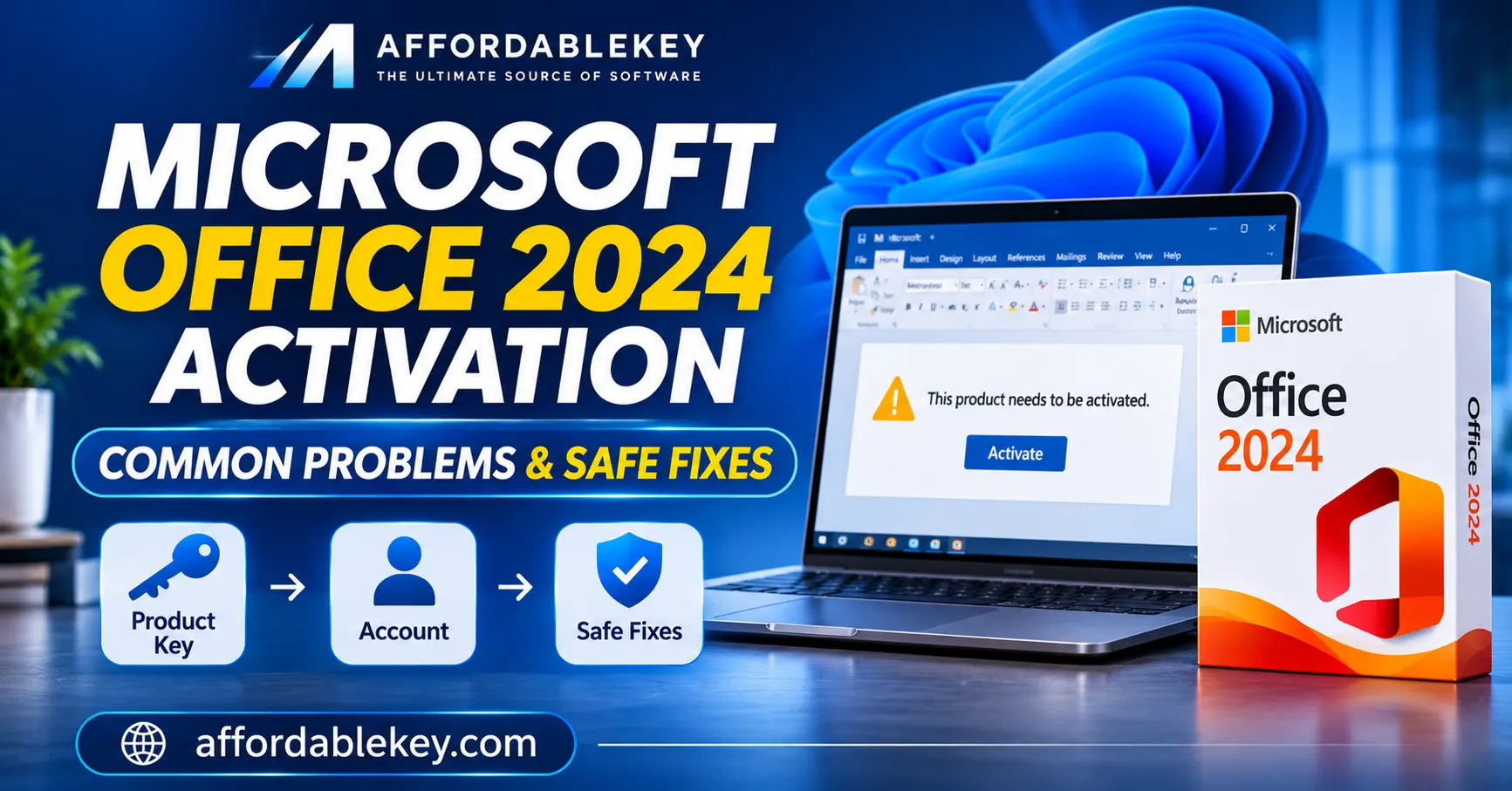
Have you installed Microsoft Office 2024 but cannot activate Word, Excel, or PowerPoint? Activation problems can happen for several reasons, including account confusion, incorrect product keys, installation conflicts, or internet connectivity issues.
Before trying random fixes, it is important to identify what is causing the problem. This guide explains common Microsoft Office 2024 activation issues and the checks you can perform to resolve them safely.
“Understanding common Microsoft Office 2024 activation issues can help you identify the cause before trying a fix.”
1. Make Sure You Are Using the Correct Microsoft Account
One common reason Office activation fails is signing in with a different Microsoft account from the one associated with the Office purchase.
If Office asks you to sign in, check that you are using the account linked to your product. If you use the wrong account, Microsoft may not recognize your Office license.
What to check:
- Confirm which Microsoft account was used when purchasing or redeeming Office.
- Sign out of the incorrect account if necessary.
- Sign in again with the account associated with your Office license.
- Check your Microsoft account’s services or subscriptions page to see whether the product is listed.
Using the correct account is an important first step when troubleshooting activation.
2. Check Whether the Product Key Is Valid
If you purchased Office using a product key, make sure the key is intended for the exact Office edition you installed.
For example, a key for one Office edition may not activate a different edition. Product keys can also have redemption, region, or licensing restrictions.
Try these checks:
- Carefully review the product name and edition.
- Check that you entered the key correctly.
- Confirm whether the key needs to be redeemed through Microsoft’s official setup process.
- Review any instructions provided with your purchase.
If Microsoft reports that a product key is invalid or blocked, contact the seller for assistance. Avoid repeatedly entering the same key or using unofficial activation tools.
3. Check Your Internet Connection
Office activation may require communication with Microsoft’s activation services. An unstable internet connection or certain network restrictions can interrupt this process.
Before trying again:
- Confirm that your internet connection is working.
- If your connection is erratic, restart your router.
- Check whether a VPN or proxy is interfering with the connection.
- Review firewall or security software settings if they are blocking Office.
Do not permanently disable your antivirus or firewall just to activate Office. If you suspect a security application is interfering, follow its official troubleshooting guidance and restore normal protection afterward.
4. Check Your Computer’s Date and Time
Incorrect date, time, or time-zone settings can sometimes interfere with Office activation.
On Windows 11:
- Open Settings.
- Select Time & language.
- Open Date & time.
- Turn on Set time automatically.
- Check that the correct time zone is selected.
- Restart Word or another Office application and try again.
This is a simple check that may help when activation fails unexpectedly.
5. Look for Multiple Office Installations
Having multiple Office installations on the same computer can sometimes cause conflicts.
For example, an older Office version or a preinstalled Microsoft 365 trial may remain on your device when you install Office 2024.
What you can do:
- Open Windows Settings.
- Select Apps, then Installed apps.
- Search for Microsoft Office or Microsoft 365.
- Review the installed versions.
- If you find an unnecessary older installation, confirm which product you need before removing anything.
Make sure you have your installation details and license information available before uninstalling Office. Then install the correct edition using Microsoft’s official installation instructions.
6. Update Office and Try Activation Again
Outdated Office components can sometimes contribute to installation or activation problems.
If you can open an Office application:
- Open Word or Excel.
- Select File.
- Open Account.
- Find Update Options, if available.
- Select Update Now.
After updating, restart the application and check the activation status.
If Office cannot open normally, use Microsoft’s official installation and troubleshooting guidance instead.
7. Understand Common Office Activation Messages
Different activation messages can point to different problems.
Here are a few examples:
| Message or issue | What to check |
|---|---|
| Unlicensed Product | Check the account, license status, and installed edition |
| Product Key Is Not Valid | Confirm the key and contact the seller if it is blocked |
| We Couldn’t Find Any Office Products | Check whether you signed in with the correct account |
| Activation Wizard Appears | Follow the wizard’s instructions |
| Office Activation Fails | Check internet access, date and time, and installation status |
The exact solution depends on the error and the type of Office license you have. Avoid applying registry changes or advanced system modifications unless Microsoft Support specifically recommends them for your situation.
“Use these checks to work through Microsoft Office 2024 activation problems step by step.”
8. Use Microsoft’s Official Troubleshooting Resources
If the basic checks do not resolve your Microsoft Office 2024 activation issue, consult Microsoft’s official support documentation.
Useful resources include:
- Activate Office for Windows
- Unlicensed Product and activation errors in Office
- Download, install, or reinstall Office 2024
- Office product key help
These resources provide guidance based on the product and activation problem.
9. What to Check Before Buying an Office 2024 License
Preventing activation problems starts before purchase. Take a moment to review the product details and licensing information.
Consider these questions:
- Is this the right version of Office 2024?
- What applications are included?
- Is the license suitable for your intended use?
- What activation or redemption method is required?
- Does the seller provide clear product and support information?
A clear product description and a reliable support process can make the purchasing and activation experience easier to understand.
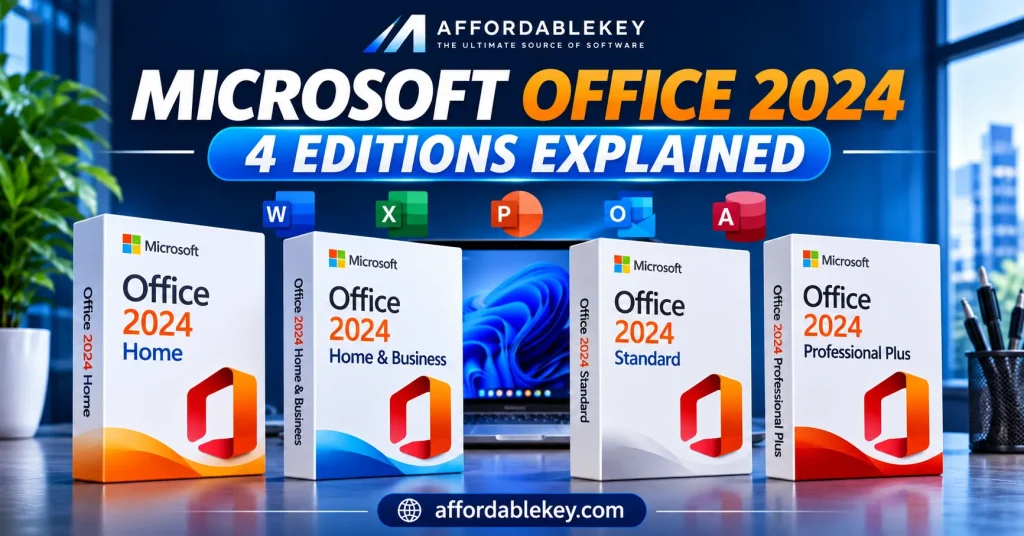
Looking for Microsoft Office products? Explore the available editions at AffordableKey.
“These answers cover some frequently asked questions about Microsoft Office 2024 activation.”
Frequently Asked Questions
Why is Microsoft Office 2024 not activating?
Possible reasons include using the wrong Microsoft account, entering an incompatible or invalid product key, network problems, or having conflicting Office installations. Check the license and installed edition first.
Can I activate Office 2024 without a Microsoft account?
The particular Office product and license determine the activation procedure. Some products use an associated Microsoft account, while certain commercial or volume-licensed products may follow different activation procedures. Follow the instructions supplied for your license.
What should I do if my Office product key is blocked?
Contact the seller and provide the relevant error message and purchase information. Microsoft advises contacting the seller if a product key is blocked or no longer works.
Can reinstalling Office fix activation problems?
Reinstalling may help if the installation is damaged or the wrong edition is installed. However, it will not fix an invalid, blocked, or incompatible license by itself.
Is an Office activation tool safe to use?
Avoid unofficial activators, cracks, or unknown scripts. They may expose your computer to malware, compromise your data, or violate software licensing terms. Use official activation methods and support resources.
“If Microsoft Office 2024 activation still fails, consult Microsoft’s official support resources.”
Final Thoughts
Microsoft Office 2024 activation problems can have several causes, so start with the simplest checks: verify your account, confirm your product key and edition, check your internet connection, and review your Office installation.
If the issue continues, use Microsoft’s official troubleshooting resources or contact your software seller with the exact error message.
Taking a few minutes to verify your license and installation can help you avoid unnecessary troubleshooting and use Office with greater confidence.
Explore Microsoft Office products and software guides at AffordableKey.