












How to Upgrade from Microsoft 365 Personal to Family

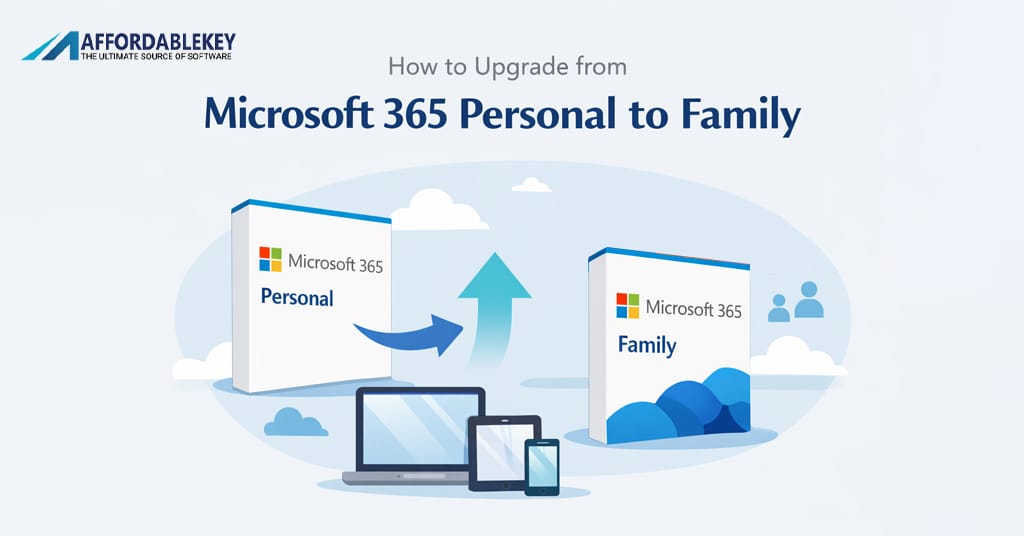
Microsoft 365 Personal is a popular subscription service. It gives you access to premium Office apps. You get Word, Excel, PowerPoint, and more. This plan works great for single users. However, many people need more accounts. They want to share with family members. This is where upgrading becomes important.
The Microsoft 365 Personal plan serves one person only. You can use it on multiple devices. But only one account gets the benefits. Many families find this limiting. They need separate accounts for each member. Kids need Office for school work. Parents need it for their jobs. Sharing one account causes problems. Files get mixed up easily. Privacy becomes a concern too.
Upgrading to the Family plan makes sense. You can add up to six people. Each person gets their own account. Everyone enjoys the full Microsoft experience. The cost per person drops significantly. You save money in the long run. This guide will help you upgrade. We cover every step in detail. You will learn the benefits too.
Microsoft 365 Personal remains popular worldwide. Millions of users subscribe to it. The service keeps improving every year. Microsoft adds new features regularly. Cloud storage is a major benefit. You get 1TB of OneDrive space. This keeps your files safe. You can access them anywhere. The mobile apps work smoothly too.
Understanding the Difference Between Microsoft 365 Personal and Family
Microsoft 365 Personal is designed for individuals. It provides one user license only. You pay a yearly or monthly fee. The subscription includes all premium apps. You get desktop and mobile versions. Cloud storage comes with it too. The plan suits solo users perfectly.
The Family plan offers much more value. It supports up to six users. Each user gets their own account. They all get 1TB of storage. That means 6TB total for the family. Everyone can install apps on their devices. The price is only slightly higher. The value per person is excellent.
Microsoft 365 Personal costs around $70 yearly. The Family plan costs about $100 yearly. The difference is just $30 more. But you get five more accounts. That breaks down to less than $17 per person. This is a significant saving. Most families benefit from upgrading. The math clearly favors the Family plan.
Both plans include the same core apps. You get Word for document creation. Excel handles all your spreadsheets. PowerPoint creates stunning presentations. Outlook manages your email efficiently. OneNote keeps your notes organized. Access and Publisher are included too. These work on Windows computers only.
The storage difference matters a lot. Microsoft 365 Personal gives 1TB total. The Family plan gives 1TB per person. Large families need more storage. Photos and videos take up space. Work documents add up quickly. Having separate storage helps everyone. No one has to delete their files.
Why You Should Consider Upgrading from Microsoft 365 Personal
The main reason is cost savings. Microsoft 365 Personal serves one person. But the Family plan serves six. The price difference is minimal. You essentially get five free accounts. Smart families take advantage of this. They share the subscription cost easily.
Another reason is convenience. Each family member gets their account. They can personalize their settings. Their files stay private and secure. No one accidentally deletes another’s work. Everyone maintains their own organization. This prevents confusion and arguments.
Kids benefit greatly from the upgrade. They get proper tools for school. Microsoft 365 Personal would limit them. But the Family plan includes them. They learn to use professional software. These skills help them in the future. Schools often require Microsoft Office. Having a subscription ensures compatibility.
The cloud storage is incredibly useful. Microsoft 365 Personal offers 1TB only. Six people cannot share this easily. The Family plan gives everyone 1TB. Photos back up automatically. Documents sync across all devices. You never lose important files again. Peace of mind is valuable.
Premium features enhance your experience. You get advanced security tools. Microsoft Defender protects your devices. Identity theft monitoring is included. These features protect your whole family. The value extends beyond just apps. Your digital safety improves significantly.
Family Safety features come included too. Parents can monitor screen time. They can filter inappropriate content. Location sharing keeps everyone connected. These tools help modern families stay safe. You cannot get these with Microsoft 365 Personal. The upgrade unlocks these valuable features.
Step-by-Step Guide to Upgrade from Microsoft 365 Personal
Upgrading is a straightforward process. Follow these steps carefully. You will complete the upgrade quickly. No technical knowledge is required. Microsoft makes the process simple.
Step 1: Sign into Your Microsoft Account
First, open your web browser. Go to account.microsoft.com. Enter your email address. Type your password carefully. Click the sign-in button. You will see your account dashboard.
Step 2: Navigate to Services and Subscriptions
Look at the top menu bar. Find the Services and subscriptions option. Click on it to proceed. This shows all your subscriptions. You will see Microsoft 365 Personal listed. This confirms your current plan.
Step 3: Click on Upgrade Option
Near your subscription details, look for upgrade. Microsoft often shows upgrade promotions. Click the upgrade button when you find it. This takes you to the upgrade page. You will see the Family plan details.
Step 4: Review the Upgrade Details
Read the information carefully. Check the new price shown. Understand what you are getting. The page explains all benefits. Make sure you want to proceed. Take your time to review everything.
Step 5: Complete the Payment Process
Microsoft calculates the price difference. Your remaining Microsoft 365 Personal time counts. You get credit for unused subscription. Enter your payment information if needed. Confirm the transaction to complete. You will receive a confirmation email.
Step 6: Add Family Members
After upgrading, add your family. Go to the Family section. Enter each person’s email address. They receive invitation emails. They must accept to join. Once accepted, they get full access.
Managing Your Microsoft 365 Family Subscription After Upgrade
After upgrading from Microsoft 365 Personal, management is important. You become the subscription owner. You have control over the account. This responsibility comes with the upgrade. Managing properly ensures everyone benefits.
Adding family members is your first task. Go to your Microsoft account page. Find the Sharing section or Family. Click Add a family member. Enter their Microsoft email address. They will receive an invitation. They must accept within 14 days.
Each member downloads their own apps. They sign in with their account. The apps install on their devices. They can use up to 5 devices. This includes computers, tablets, and phones. Everyone gets the full experience.
Removing members is also possible. Sometimes family situations change. You can remove people when needed. Go to the Family section. Find the member to remove. Click the remove option. Their access ends immediately.
Monitoring storage usage helps everyone. You can see how much each uses. This prevents storage problems. If someone runs low, you can help. They might need to delete files. Or they can upgrade their storage.
The subscription renews automatically. Make sure your payment method works. Update it if cards expire. This prevents service interruption. Everyone loses access if payment fails. Keep your billing information current.
Microsoft 365 Personal users miss these features. The Family plan gives you control. You manage everything from one dashboard. This centralized management saves time. You help your whole family efficiently.
Cost Comparison: Microsoft 365 Personal vs Family Plan
Understanding the costs helps you decide. Microsoft 365 Personal costs about $70 per year. That works out to $5.83 per month. This serves only one person. The value is good for individuals.
The Family plan costs around $100 yearly. That equals about $8.33 monthly. This serves up to six people. The cost per person drops dramatically. Each person pays only $16.67 yearly. That is just $1.39 per month each.
Let us compare the savings clearly. Two people using Microsoft 365 Personal cost $140. The Family plan for two costs $100. You save $40 immediately. The savings grow with more people. Three people on Personal costs $210. The Family plan still costs $100. You save $110 with three people.
Four people on Microsoft 365 Personal costs $280. The Family plan saves you $180. Five people would cost $350 individually. You save a massive $250 with Family. Six people on Personal costs $420. The Family plan saves you $320 yearly.
These calculations make the choice obvious. Any family with two or more needs Family. Even couples benefit from upgrading. The savings are too significant to ignore. Microsoft 365 Personal makes sense only alone.
Monthly payment options exist too. Microsoft 365 Personal costs $7 monthly. The Family plan costs $10 monthly. The savings scale the same way. Annual plans cost less overall. You save by paying yearly.
Get Affordable Microsoft 365 at AffordableKey
Looking for the best deals on Microsoft 365? AffordableKey offers amazing prices. You can save even more money here. They sell genuine Microsoft products. The activation is quick and easy. Many customers trust this platform.
AffordableKey specializes in software keys. They offer Microsoft 365 Personal at great prices. Family plans are available too. The discounts are significant. You might save 50% or more. This makes upgrading even more affordable.
The purchasing process is simple. Visit their website to browse products. Select the plan you want. Add it to your cart. Complete the checkout process. You receive your key instantly. Activate it on your Microsoft account.
Customer service is excellent at AffordableKey. They help with any issues quickly. The keys are guaranteed to work. If problems occur, they resolve them. Many positive reviews confirm their reliability. Customers return for future purchases.
Microsoft 365 Personal keys are popular there. Students often buy from them. Families find great value too. Small businesses save money. Everyone benefits from lower prices. The savings help your budget significantly.
Consider AffordableKey for your upgrade. Compare their prices with Microsoft directly. The savings will surprise you. Quality remains the same. You get the official Microsoft product. Only the price is different.
Common Issues When Upgrading from Microsoft 365 Personal
Some users face problems during upgrades. Knowing these helps you prepare. Most issues have simple solutions. Do not worry if problems occur. Microsoft support can always help.
Payment failures happen sometimes. Your card might be declined. Check your card details carefully. Ensure sufficient funds are available. Try a different payment method. Contact your bank if needed.
Account verification can cause delays. Microsoft might need to verify you. They send a code to your email. Enter it to proceed. Check your spam folder too. The email might land there.
Subscription conflicts occur occasionally. You might have multiple subscriptions. Microsoft 365 Personal might overlap with another. Contact support to resolve this. They can merge or adjust subscriptions. This ensures you get proper credit.
Family member invitations sometimes fail. The email might not arrive. Ask them to check spam folders. Resend the invitation if needed. Make sure their email is correct. Typos cause this problem often.
Regional restrictions can affect upgrades. Some features vary by country. Pricing differs in different regions. Check the terms for your location. Microsoft clearly states any limitations. This prevents surprises later.
Download problems frustrate some users. Apps might not install correctly. Restart your device and try again. Check your internet connection speed. Free up storage space on devices. Most installation issues are simple.
Microsoft 365 Personal users experience these too. The issues are not upgrade-specific. Microsoft’s support team helps everyone. They have online chat options. Phone support is available too. Use these resources when needed.
Features You Gain by Upgrading from Microsoft 365 Personal
The upgrade brings many new features. Beyond extra accounts, you get more. These features add significant value. Understanding them helps justify the cost. Your family will enjoy these benefits.
Microsoft Family Safety is incredibly useful. Parents can set screen time limits. Content filters protect children online. Location sharing keeps families connected. Activity reports show usage patterns. These tools help modern parenting.
Additional OneDrive Storage benefits everyone. Microsoft 365 Personal provides 1TB total. The Family plan gives 1TB per person. Six people get 6TB combined. This massive storage holds everything. Photos, videos, and documents fit easily.
Simultaneous Device Usage improves convenience. Each person uses their own devices. No one competes for access. Everyone works at the same time. This prevents scheduling conflicts. Productivity increases for everyone.
Premium Outlook Features enhance email. You get ad-free email experience. Additional security features protect you. Larger attachment limits help too. Email becomes more professional. These features improve communication.
Advanced Security Tools protect your family. Microsoft Defender covers multiple devices. Antivirus protection is included. Safe browsing features warn of dangers. Password monitoring alerts about breaches. Your digital life becomes safer.
Technical Support Priority might be available. Family plan subscribers sometimes get priority. Support response times may be faster. This helps when problems occur. Quick resolution minimizes disruption.
Microsoft 365 Personal lacks these family features. The upgrade unlocks the full potential. Your investment provides tremendous value. These features justify the small price increase. Consider all benefits when deciding.
Upgrading from Microsoft 365 Personal
Adding members is easy after upgrading. Follow these steps for each person. Everyone gets access within minutes. The process is straightforward and quick.
First, sign into your Microsoft account. Go to account.microsoft.com in your browser. Enter your login credentials. Navigate to the Family section. You will see options for sharing.
Click the “Add a member” button. A dialog box will appear. Enter the person’s email address. They need a Microsoft account. The email links to their account.
Choose their role in the family. You can add them as a member. Organizers can also manage settings. Regular members just get access. Choose based on their needs.
Microsoft sends an invitation email. The person checks their inbox. They click the acceptance link. They sign in to confirm. Their Microsoft 365 access activates immediately. They can download apps right away.
Repeat this process for everyone. Remember, Microsoft 365 Personal allowed only you. Now six people can join. Fill all slots for maximum value.
Help members set up their apps. Guide them through the download process. Show them how to sign in. Explain the available features. Help them understand OneDrive usage. Everyone starts using Office productively.
Keep track of who you added. The account dashboard shows all members. You can see their status anytime. This helps you manage the subscription. Stay organized as the account owner.
Troubleshooting Microsoft 365 Personal to Family Upgrade Issues
Problems sometimes occur during upgrades. Do not panic when they happen. Most issues have simple solutions. Follow these troubleshooting steps carefully. You will resolve most problems quickly.
Upgrade Option Not Showing
Sometimes the upgrade link disappears. Clear your browser cache first. Try a different browser entirely. Sign out and sign back in. Contact support if problems persist.
Payment Processing Errors
Payment failures frustrate many users. Verify your card information is correct. Check your available balance or limit. Try a different payment method. PayPal is an alternative option. Bank restrictions might block transactions internationally.
Proration Calculation Seems Wrong
Microsoft credits your remaining Microsoft 365 Personal time. The calculation can seem confusing. Contact support for explanation. They can show the breakdown clearly. Usually the calculation is correct.
Subscription Status Not Updating
After payment, status should change immediately. Sometimes there are delays. Wait a few hours first. Sign out and back in. Check your email for confirmation. Contact support if status never changes.
Cannot Add Family Members
After upgrading, adding might fail. Ensure you completed the upgrade fully. Check for pending payments. Verify the email addresses you enter. Ask members to check spam folders. Resend invitations if necessary.
Apps Still Show Personal Plan
Sometimes apps show old information. Sign out of all Office apps. Sign back in with your account. The apps should update status. Restart your device if needed. This refreshes the subscription information.
Microsoft 365 Personal to Family upgrades usually work smoothly. These problems are not common. But knowing solutions helps if needed. Microsoft support is always available. They resolve complex issues professionally.
Tips for Maximizing Your Microsoft 365 Family Subscription
Getting the most value requires strategy. These tips help maximize your subscription. Follow them after upgrading from Microsoft 365 Personal. Your family will benefit significantly.
Fill All Six Slots
Do not waste available accounts. Add all family members possible. Include extended family if appropriate. Each unused slot wastes money. The cost stays the same regardless.
Use OneDrive Actively
Each person gets 1TB of storage. Encourage everyone to use it. Back up photos automatically. Store important documents there. Share files between family members easily. The cloud storage is valuable.
Learn All the Apps
Office includes many useful applications. Most people only use Word and Excel. Explore PowerPoint for presentations. Try OneNote for note-taking. Use Outlook for email management. Each app adds value to your subscription.
Set Up Family Safety
Parents should configure Family Safety features. Set appropriate screen time limits. Enable content filters for children. Use location sharing for safety. Monitor activity reports regularly. These features protect your family.
Install on All Devices
Each person can use five devices. Install on computers and tablets. Get the mobile apps too. This maximizes convenience and access. Work from anywhere on any device. The flexibility improves productivity.
Keep Apps Updated
Microsoft releases updates regularly. New features come with updates. Security patches protect your devices. Enable automatic updates if possible. This keeps everything working smoothly. You always have the latest version.
Explore Additional Benefits
Microsoft 365 includes extra perks. Check for Skype minutes included. Look for special partner offers. Microsoft often adds new benefits. Stay informed about what is available. You might miss valuable features otherwise.
Microsoft 365 Personal users cannot do all this. The upgrade opens many possibilities. Take full advantage of everything. Your subscription value increases dramatically. Make the most of your investment.
Comparison with Other Family Productivity Suites
Microsoft 365 is not your only option. Other family productivity suites exist. Comparing them helps you decide wisely. However, Microsoft 365 remains the leader. Here’s how it compares.
Google Workspace is a popular alternative. It offers similar collaborative tools. Google Docs, Sheets, and Slides are included. The free tier is generous. However, premium features cost extra. Storage is shared across services. Microsoft 365 Family offers more per person.
Apple iWork works for Apple users. Pages, Numbers, and Keynote are free. They work well within Apple ecosystem. Cross-platform compatibility is limited. Windows users face challenges. Microsoft 365 works everywhere seamlessly.
LibreOffice is completely free. It offers basic office functionality. However, cloud features are limited. Collaboration is not as smooth. Support is community-based only. Families need more reliable solutions.
Microsoft 365 Personal leads for individuals. But the Family plan dominates for families. The combination of features is unmatched. According to Microsoft’s official comparison page, the Family plan provides the best value for households.
The integration with Windows is perfect. OneDrive works seamlessly with File Explorer. Outlook integrates with Windows notifications. The experience feels completely natural. Other suites cannot match this integration.
Security features set Microsoft apart. Defender provides excellent protection. Password monitoring prevents identity theft. Safe browsing protects online activities. These features come included. Competitors charge extra for similar protection.
For most families, Microsoft 365 Family wins. The value proposition is clear. Microsoft 365 Personal serves individuals well. But families need the upgraded plan. The comparison confirms Microsoft’s leadership.
Understanding Microsoft 365 Personal Subscription Management
Managing your subscription properly is important. Whether you keep Microsoft 365 Personal or upgrade, understanding helps. Here are key management concepts explained clearly.
Subscription Renewal
Microsoft 365 Personal renews automatically. Check your renewal date regularly. Ensure your payment method is current. Update expired cards promptly. This prevents service interruption. Automatic renewal keeps things simple.
Cancellation Process
You can cancel anytime if needed. Go to Services and subscriptions. Find the cancel option for your subscription. Confirm your decision when prompted. You keep access until the period ends. Refunds depend on timing and terms.
Billing History
Review your billing history occasionally. This shows all your payments. Verify charges are correct. Report any discrepancies immediately. Microsoft keeps detailed records. Access them through your account page.
Payment Methods
Add backup payment methods. Credit cards and PayPal work. Multiple options prevent payment failures. Update methods when cards expire. This ensures continuous service access. Microsoft notifies you before renewals.
Subscription Pausing
Microsoft does not offer pause options. You either subscribe or cancel. Plan your subscription accordingly. Consider timing when making changes. Annual plans offer the best value. Monthly plans offer more flexibility.
Transferring Subscriptions
Microsoft 365 Personal subscriptions cannot transfer. The account holder owns it permanently. Family members are different. They share access but do not own. Understand this distinction clearly.
These management skills apply after upgrading too. The Family plan works similarly. Stay organized with your subscription. Regular checks prevent problems. Good management maximizes your value.
Conclusion
Upgrading from Microsoft 365 Personal to Family makes perfect sense. The benefits far outweigh the small cost increase. You get six accounts instead of one. Each person enjoys their own storage space. The math clearly favors the upgrade decision.
Families save significant money with this upgrade. Microsoft 365 Personal costs $70 for one person. The Family plan costs $100 for six people. That is just $16.67 per person yearly. The savings grow with each additional user. Smart families make this choice quickly.
The upgrade process is simple and fast. Microsoft guides you through each step. Your remaining subscription time gets credited. Adding family members takes just minutes. Everyone starts enjoying benefits immediately. There are no complicated procedures involved.
Beyond cost savings, features improve dramatically. Family Safety tools protect your children. Extra storage keeps everyone’s files safe. Security features guard against online threats. These additions justify the upgrade completely.
We recommend exploring AffordableKey for even better deals. Their discounted keys save you more money. The products are genuine and reliable. Many satisfied customers recommend their service. Check their website before purchasing elsewhere.
Making the switch from Microsoft 365 Personal is worthwhile. Your whole family benefits from this decision. Productivity improves for everyone. Digital safety increases significantly. Start your upgrade process today. You will not regret this decision.
FAQ’s
Q: Can I upgrade from Microsoft 365 Personal at any time?
A: Yes, you can upgrade whenever you want. Microsoft allows upgrades at any point during your subscription. Your remaining Microsoft 365 Personal time gets credited toward the Family plan. The process takes only a few minutes to complete. You do not lose any subscription value when upgrading.
Q: What happens to my files when I upgrade from Microsoft 365 Personal?
A: All your files remain exactly where they are. Your OneDrive storage and files stay intact during the upgrade. Nothing gets deleted or moved during the process. You keep all your documents, photos, and other files. The upgrade only changes your subscription type and benefits.
Q: Can family members on different continents join my Microsoft 365 Family?
A: Yes, family members can be anywhere in the world. Geographic location does not restrict family sharing. Each member uses their own Microsoft account. They access the subscription from their location. Internet access is the only requirement for them.
Q: Do I need to reinstall Office apps after upgrading from Microsoft 365 Personal?
A: No, you do not need to reinstall anything. Your existing Office applications continue working normally. Simply sign out and sign back in. The apps will recognize your new subscription status. Family members need to install apps on their devices separately.
Q: Can I switch back to Microsoft 365 Personal after upgrading?
A: Yes, you can switch back when your subscription renews. You cannot downgrade mid-subscription easily. Contact Microsoft support for special circumstances. They may be able to assist with changes. Generally, waiting until renewal is the simplest option.




