









Windows 11 Pro Product Key Activation: Features, Requirements & Guide

Windows 11 Pro Product Key Activation: Features, Requirements & Guide
Ready to upgrade your PC? Understanding Windows 11 Pro Product Key Activation is important before installing or activating the professional edition of Windows 11.
Windows 11 Pro is designed for professionals, businesses, remote workers, and advanced users who need additional security, management, and productivity features. Before starting the Windows 11 Pro Product Key Activation process, you should make sure your computer meets the minimum system requirements and that you have the correct product key or digital license for the Windows edition you are using.
In this guide, you will learn about Windows 11 Pro features, minimum requirements, installation options, and the steps involved in Windows 11 Pro Product Key Activation.
Ready to upgrade? Learn what you need before activating Windows 11 Pro.
What Is Windows 11 Pro Product Key Activation?
Windows 11 Pro Product Key Activation is the process of activating an eligible installation of Windows 11 Pro by using a valid product key or, in some cases, a digital license linked to the device or Microsoft account.
A Windows product key is generally a 25-character code that looks similar to this format:
XXXXX-XXXXX-XXXXX-XXXXX-XXXXX
The correct product key must match the Windows edition you are trying to activate. For example, a key intended for Windows 11 Pro may not activate a different edition of Windows.
During Windows 11 Pro Product Key Activation, Windows checks the activation information associated with the product key or digital license. After successful activation, you can confirm your activation status through the Windows Activation settings.
Why Choose Windows 11 Pro?
Windows 11 Pro includes features designed for professional and business use. While Windows 11 Home can meet the needs of many everyday users, the Pro edition offers additional tools for security, management, and remote work.
Windows 11 Pro may be suitable for:
- Business users
- Remote workers
- IT professionals
- Advanced PC users
- Small business owners
- Professionals managing multiple devices
- Users who need advanced security features
Before purchasing a Windows 11 Pro Product Key Activation solution, make sure that Windows 11 Pro is the right edition for your device and requirements.
Key Features of Windows 11 Pro
Windows 11 Pro offers several professional features that can be useful for work and business environments.
1. BitLocker Device Encryption
BitLocker helps protect data stored on supported devices through encryption.
This can be useful for:
- Business laptops
- Work computers
- Devices containing important files
- Users who travel with their computers
After completing Windows 11 Pro Product Key Activation, eligible users can access features available with the activated edition and supported hardware configuration.
2. Remote Desktop
Windows 11 Pro supports Remote Desktop functionality, allowing users to connect to compatible computers remotely.
Remote Desktop can be useful for:
- Remote work
- Business environments
- IT administration
- Accessing an office computer
Always use strong security settings and appropriate network protection when configuring remote access.
3. Advanced Security Features
Security is an important part of professional computing.
Windows 11 Pro includes additional tools and capabilities that can support professional security and device management.
These features may be particularly useful for organizations that manage sensitive information or multiple devices.
4. Group Policy Management
Group Policy allows administrators to manage and configure settings across Windows systems.
This feature can be useful in:
- Business networks
- Office environments
- Managed computers
- Professional IT environments
Group Policy provides additional control that can help administrators manage Windows settings more efficiently.
5. Hyper-V Virtualization
On supported hardware, Windows 11 Pro provides access to virtualization features such as Hyper-V.
Virtualization can be useful for:
- Software testing
- Development
- Training
- Running virtual machines
- Testing different operating systems
Feature availability may depend on hardware and system configuration.
6. Business and Professional Tools
Windows 11 Pro is designed to support professional workflows and workplace environments.
Its additional features can help businesses manage devices, improve security, and support professional productivity.
This is one reason why many professional users choose Windows 11 Pro instead of the standard Home edition.
Windows 11 Pro Minimum Requirements
Before beginning Windows 11 Pro Product Key Activation, you should make sure your computer is compatible with Windows 11.
According to Microsoft’s current Windows 11 requirements, a compatible device generally needs the following minimum specifications:
Processor
Your computer needs:
- A compatible 64-bit processor or System on a Chip
- 1 GHz or faster
- Two or more cores
RAM
Your computer needs at least:
4 GB of RAM
More RAM may provide better performance when running multiple applications.
Storage
Windows 11 requires at least:
64 GB or larger storage capacity
Additional storage may be required for updates, applications, and personal files.
Graphics Card
Your device should have:
- DirectX 12 compatible graphics
- WDDM 2.0 driver
System Firmware
Your computer should support:
UEFI firmware with Secure Boot capability
Secure Boot is an important security requirement for Windows 11 compatibility.
TPM 2.0
Windows 11 generally requires:
Trusted Platform Module version 2.0
TPM is used to support important security-related functions.
Display
The minimum display requirement generally includes:
- High-definition display
- 720p resolution
- Display larger than 9 inches
- 8 bits per color channel
Microsoft also notes that specific Windows features may have additional requirements beyond the basic minimum hardware specifications.
Internet Connection and Microsoft Account
Internet access is required for updates and some Windows features. Microsoft also states that Windows 11 Pro for personal use requires internet connectivity and a Microsoft account during initial device setup.
Before installation, it is a good idea to check the latest requirements on:
Microsoft Windows 11 System Requirements
How to Check Windows 11 Compatibility
Before downloading or installing Windows 11 Pro, check whether your computer meets the required specifications.
You should check:
- Processor compatibility
- RAM
- Available storage
- TPM 2.0
- Secure Boot capability
- Graphics compatibility
Microsoft provides the PC Health Check tool to help eligible users assess whether a device can run Windows 11.
Checking compatibility before installation can help you avoid unnecessary installation problems.
How to Download Windows 11 Pro
Before starting the Windows 11 Pro Product Key Activation process, you need to install the correct Windows edition.
When preparing to install Windows, use trusted installation media and follow official installation guidance.
Depending on your situation, installation methods may include:
- Windows Installation Assistant
- Installation media
- Bootable USB drive
- ISO file
Before downloading Windows, remember to:
- Back up important files
- Check system compatibility
- Make sure you have sufficient storage
- Prepare a stable internet connection
- Confirm which Windows edition you need
Using trusted installation media can help reduce security and installation risks.
How to Install Windows 11 Pro
The installation process may vary depending on whether you are upgrading an existing PC or performing a clean installation.
However, the general process is straightforward.
Step 1: Prepare Your Device
Before installation:
- Back up important files
- Confirm your PC meets the minimum requirements
- Prepare installation media if necessary
- Make sure you have enough storage space
Step 2: Start Windows Installation
Begin the installation or upgrade process using the appropriate installation method.
Follow the instructions displayed on your screen.
Step 3: Select Windows 11 Pro
If you are asked to select a Windows edition, choose:
Windows 11 Pro
Verify that the edition corresponds to the product key or license you plan to use.
Because a product key for one edition might not activate another, this is crucial.
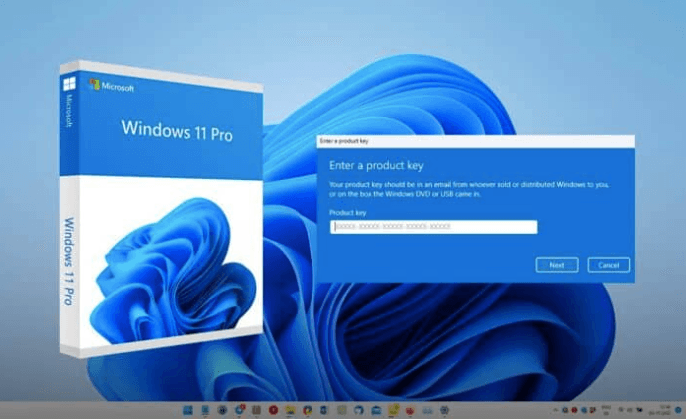
Step 4: Enter the Product Key
During installation, Windows may ask you to enter your product key.
You can enter the key if required or, depending on your situation, complete activation after installation.
Always enter the product key carefully and ensure it matches the installed edition.
Windows 11 Pro Product Key Activation: Step-by-Step Guide
Once Windows 11 Pro is installed, you can complete the Windows 11 Pro Product Key Activation process through the Activation settings.
According to Microsoft, depending on how the Windows license was purchased, either a digital license or a legitimate product key can be used to activate Windows 11.
Follow these general steps.
Step 1: Open Settings
Click:
Start → Settings
Step 2: Select System
From the Settings menu, choose:
System
Step 3: Open Activation Settings
Scroll down and select:
Activation
You can view the activation status of your Windows installation from this section.
Step 4: Select Change Product Key
Find the option:
Change Product Key
Then enter your valid 25-character Windows product key.
Step 5: Complete Windows 11 Pro Product Key Activation
Follow the instructions displayed on your screen.
If the product key is valid for the installed edition and activation requirements are met, Windows can complete the activation process online.
You can then return to:
Settings → System → Activation
to check your activation status.
Microsoft provides additional activation guidance here:
Microsoft Windows Activation Guide
What Is a Download and Activation Key?
The term download and activation key is commonly used when referring to digital software information that helps a user install and activate software.
Depending on the product, the customer may receive:
- A product key
- License information
- Activation instructions
- Download instructions
- Installation guidance
Before purchasing a download and activation key, review the product details carefully.
You should check:
- Software edition
- License type
- Device compatibility
- Activation method
- Number of supported devices
- Installation instructions
For Windows 11 Pro Product Key Activation, it is especially important that the key is intended for the Windows edition installed on your computer.
Common Windows 11 Pro Product Key Activation Problems
Sometimes users experience activation problems.
Here are some common issues.
Wrong Windows Edition
Using a product key that differs from the installed Windows edition is one of the most frequent issues.
A Windows 11 Home product key, for instance, is not meant to activate Windows 11 Pro.
Before starting Windows 11 Pro Product Key Activation, confirm which edition is installed on your computer.
Typing Errors
A Windows product key contains multiple characters.
Check carefully for:
- Incorrect letters
- Incorrect numbers
- Missing characters
- Extra spaces
Enter the product key exactly as provided.
Internet Connection Problems
Windows activation may require internet connectivity.
Make sure:
- Your internet connection is working
- Your computer is online
- Network settings are not blocking the activation process
Product Key or License Issues
Activation may fail when:
- The installed edition and the key are different.
- The key’s allowed activation limit has already been achieved.
- The key was entered incorrectly
- There is a licensing issue
If you experience a legitimate activation problem, check your order details and contact the seller or appropriate support service.
Microsoft also provides troubleshooting guidance for activation-related issues.
Tips Before Buying a Windows 11 Pro Product Key
Before purchasing a Windows 11 Pro Product Key Activation solution, consider the following points.
Check the Windows Edition
Confirm that you need:
Windows 11 Pro
The installed version of Windows and your product key ought to work together.
Understand the License Details
Before purchasing, review:
- License type
- Device eligibility
- Activation limitations
- Transfer conditions
- Product description
Understanding the license information can help you choose the correct product.
Choose a Trusted Seller
When purchasing digital software products, look for sellers that provide:
- Clear product descriptions
- Secure payment options
- Transparent policies
- Customer support
- Delivery information
- Activation guidance
Avoid suspicious offers with unclear licensing information or unrealistic claims.
Keep Your Product Information Safe
After purchasing a Windows product key, keep your product and order information in a secure place.
You may need this information for:
- Reinstallation
- Support requests
- License verification
- Future device setup
Why Choose the Right Product Key for Windows 11 Pro?
Choosing the correct product key is important for a smooth Windows 11 Pro Product Key Activation experience.
Before purchasing, confirm:
- The Windows edition
- Your device compatibility
- License information
- Activation instructions
- Seller policies
A properly matched product key can help avoid common activation errors related to edition mismatches.
Frequently Asked Questions
What Is Windows 11 Pro Product Key Activation?
Windows 11 Pro Product Key Activation is the process of activating Windows 11 Pro using an eligible product key or digital license.
How Do I Activate Windows 11 Pro?
You can generally activate Windows through:
Settings → System → Activation
Next, choose the option to input or modify a product key, then adhere to the on-screen directions.
How Many Characters Does a Windows Product Key Contain?
A Windows product key is generally a 25-character code formatted in five groups.
Is it possible to activate Windows 11 Pro with a Windows 11 Home Key?
Generally speaking, the edition you are attempting to activate must match the product key. Windows 11 Pro cannot be activated with a Windows 11 Home key.
Does Windows 11 Pro Product Key Activation Require Internet Access?
Online activation generally requires internet connectivity. Internet access is also required for updates and some Windows features.
How Do I Proceed If My Windows Product Key Isn’t Working?
First, check that:
- The product key was entered correctly
- The installed edition matches the product key
- Your internet connection is working
If the issue continues, review the activation error and contact the seller or appropriate support service.
What Are the Minimum Requirements for Windows 11 Pro?
The main Windows 11 requirements include:
- Compatible 64-bit processor
- 1 GHz or faster processor with two or more cores
- 4 GB RAM
- 64 GB storage
- UEFI with Secure Boot capability
- TPM 2.0
- DirectX 12 compatible graphics
- Compatible display requirements
Always review Microsoft’s latest system requirements before installation.
Final Thoughts
The installation and activation process can be made simpler by being aware of Windows 11 Pro Product Key Activation.
Before activating Windows 11 Pro, make sure that your computer meets the minimum requirements, your installed Windows edition matches your product key, and you understand the license details associated with your software.
Windows 11 Pro provides additional features for professionals and businesses, including advanced security, BitLocker, Remote Desktop, Group Policy, and virtualization capabilities on supported systems.
Whether you are looking for a product key, a pro activation key, or a download and activation key, choosing the correct Windows edition and following proper activation steps can help you achieve a smoother Windows 11 Pro Product Key Activation experience.
Ready to upgrade your PC? Check your system compatibility, choose the correct Windows edition, and follow the appropriate installation and activation process for your device.