How to Install Windows from USB in 2026

How to Install Windows from USB
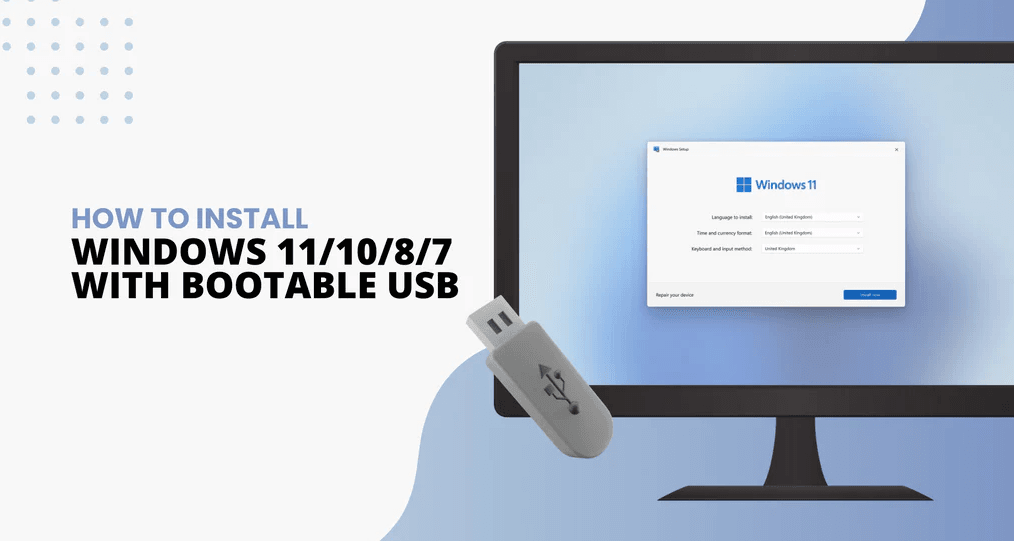
How to Install Windows from USB drive is the fastest and most convenient way to set up your operating system on a new or existing PC. Whether you want to install Windows 10 or Windows 11, using a bootable USB drive from AffordableKey ensures a smooth and reliable installation process.
This guide will take you step by step through creating a bootable USB and installing Windows safely, so you can get your PC up and running quickly.
What You Need Before You Start
How to Install Windows from USB, make sure you have:
-
A USB flash drive (at least 8 GB)
-
Windows ISO file (Windows 10 or 11)
-
Rufus or Media Creation Tool to make a bootable USB
-
A PC that supports USB booting
Step 1: Create a Bootable USB
Using Rufus:
-
Download Rufus from rufus.ie.
-
Plug in your USB drive.
-
Open Rufus, and select your USB under Device.
-
Click SELECT and choose your Windows ISO file.
-
Set Partition Scheme:
-
GPT for UEFI systems
-
MBR for BIOS/Legacy systems
-
-
Choose FAT32 for UEFI or NTFS for large files.
-
Click START and wait for Rufus to create the bootable USB.
Step 2: Configure Your PC to Boot from USB
-
Insert your bootable USB into the PC.
-
Restart the computer.
-
Press the key to enter BIOS/UEFI settings (commonly F2, F10, F12, ESC, or DEL).
-
Change the boot order to make the USB drive the first boot device.
-
Save and exit BIOS/UEFI.
Step 3: Start Windows Installation
-
After booting from USB, the Windows Setup screen will appear.
-
Select your language, time, and keyboard settings, then click Next.
-
Click Install Now.
-
Enter your Windows product key or skip it if you want to activate later.
-
Choose Custom: Install Windows only (advanced) if installing fresh.
-
Select the drive/partition to install Windows. Format it if necessary.
-
Click Next to start the installation.
Step 4: Complete Installation
-
The PC will copy files and restart several times.
-
Follow on-screen prompts to set up your username, password, and privacy settings.
-
Once finished, Windows will boot to the desktop, ready to use.
Tips for a Smooth USB Windows Installation
Installing Windows from a USB drive is usually straightforward, but following a few best practices can save you time and prevent errors. Here’s how to ensure your installation goes smoothly:
1. Use a High-Speed USB Drive
For faster and more reliable installation, use a USB 3.0 drive rather than an older USB 2.0 drive. High-speed drives reduce the time it takes to copy Windows files and improve overall performance during setup. If possible, choose a USB drive from a trusted brand to ensure durability and fewer errors.
2. Keep Your Drivers Ready
After Windows is installed, you may need to update or install drivers for your hardware, such as graphics cards, network adapters, or sound devices. Keep a separate folder or USB drive with essential drivers ready to make post-installation setup faster and avoid connectivity issues.
3. Back Up Important Files
Installing or reinstalling Windows can erase your files if you select the wrong drive or partition. Always back up important documents, photos, and software before starting the installation. Consider using cloud storage or an external drive to ensure nothing is lost during the process.
4. Check ISO File Integrity and USB Compatibility
How to Install Windows from USB Before
Errors during installation can happen if the ISO file is corrupted or the USB drive is incompatible. Always download Windows ISO files from official sources, such as Microsoft or AffordableKey, and verify the file integrity using checksums if available. Make sure your USB drive is properly formatted and compatible with your PC’s boot mode (UEFI or BIOS).
5. Follow BIOS/UEFI Settings Carefully
How to Install Windows from USB Before
Starting the installation, ensure your PC’s BIOS or UEFI is set to boot from USB. Double-check settings like Secure Boot and Legacy/UEFI mode to prevent boot errors. This step is especially important for modern PCs running Windows 11, which require UEFI mode.
FAQ (How to Install Windows from USB Before)
Q1: Can I install Windows from USB on any PC?
Most modern PCs support USB installation, but check BIOS/UEFI settings for boot options.
Q2: Do I need a product key to install Windows?
No, you can install Windows without a key, but some features will be restricted until activation.
Q3: Can I use Rufus or Media Creation Tool for Windows 11?
Yes, both tools support Windows 10 and Windows 11 ISO files.
Q4: Will installing Windows erase my data?
Yes, choosing a fresh installation will erase the selected drive. Always back up important files.
Q5: How long does it take to install Windows from USB?
Usually 20–40 minutes, depending on USB speed and system performance.
Final Thoughts
How to Install Windows from USB is fast, convenient, and reliable. With a properly created bootable USB, you can install or reinstall Windows safely on any compatible PC.