Hidden Windows Features Most Users Never Use: A Complete Guide

Hidden Windows Features A Complete Guide
Windows is the most widely used desktop operating system in the world. Yet, despite its popularity, most users rely on only a fraction of its capabilities.
Microsoft has spent years adding features designed to improve productivity, security, and usability—but many of them remain buried under menus or disabled by default. This article explores hidden Windows features that most users never use, but absolutely should.
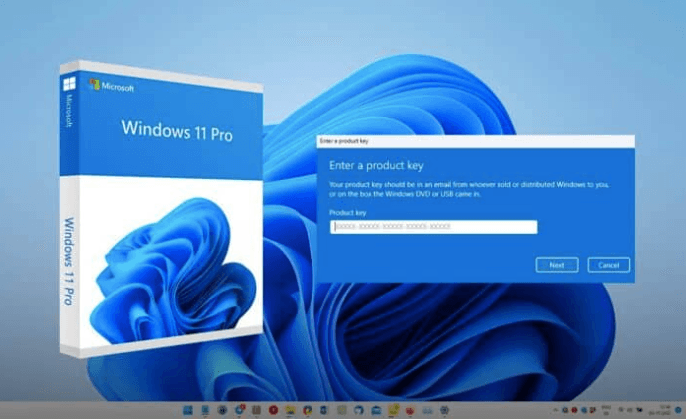
To truly unlock these features, having a fully activated and genuine Windows license is essential. Platforms like AffordableKey make it easier for users to access legitimate Windows and Microsoft product keys at a budget-friendly price, ensuring all built-in features work without limitations.
1. Clipboard History: Beyond Copy and Paste
Traditional copy-paste only remembers one item. Windows’ Clipboard History remembers many.
By pressing Windows + V, users can:
-
Access previously copied text and images
-
Pin frequently used items
-
Paste content across multiple apps
Hidden Windows Features for writers, developers, and office workers, this feature alone can save hours every week.
2. Virtual Desktops for Better Workflow Management
Hidden Windows Features Virtual Desktops allow users to separate tasks without buying extra monitors.
Use cases include:
-
One desktop for work apps
-
One for communication tools
-
One for entertainment
Switching desktops reduces mental overload and helps users stay focused on one task at a time.
3. Focus Assist and Focus Sessions
Windows includes two powerful focus tools that most users ignore.
Focus Assist
-
Blocks notifications during meetings or gaming
-
Automatically activates during specific hours
Focus Sessions
-
Encourages deep work with timers
-
Tracks productivity goals
-
Integrates task lists
Hidden Windows Features together, they create a distraction-free work environment.
4. PowerToys: Advanced Tools for Power Users
PowerToys is an official Microsoft utility designed for advanced users.
Key features:
-
FancyZones for custom window layouts
-
Keyboard Manager for remapping keys
-
PowerRename for batch file renaming
-
Image Resizer from right-click menu
Despite being free, many users don’t even know it exists.
5. Storage Sense: Automatic Disk Cleanup
Hidden Windows Features manual disk cleanup is outdated.
Storage Sense:
-
Runs automatically
-
Deletes unnecessary files
-
Frees up disk space without user input
This feature is especially helpful for laptops and SSD-based systems.
6. Nearby Sharing: Fast File Transfer
Nearby Sharing enables quick file transfers between Windows devices using Wi-Fi and Bluetooth.
Benefits:
-
No cables
-
No cloud uploads
-
Secure local sharing
It’s ideal for workplaces and personal device ecosystems.
7. Dynamic Lock: Smart Security
Dynamic Lock improves security by automatically locking your PC when you leave.
Once paired with your smartphone:
-
Windows locks when your phone disconnects
-
Reduces risk of unauthorized access
-
Works silently in the background
8. Windows Sandbox (For Advanced Users)
Windows Sandbox lets users run applications in a temporary, isolated environment.
Use cases:
-
Testing unknown software
-
Opening suspicious files
-
Avoiding system contamination
When closed, everything inside the sandbox is deleted.
9. File Explorer Power Hidden Windows Features
Most users never go beyond basic file browsing.
Hidden features include:
-
Quick Access customization
-
File preview pane
-
Advanced search filters
-
One-click file path copying
Mastering File Explorer alone can significantly boost efficiency.
Frequently Asked Questions (FAQs)
1. Why are some Hidden Windows Features or disabled by default?
Microsoft disables certain features by default to maintain compatibility, reduce system load, and avoid confusing beginner users. Advanced or specialized features are left optional so users can enable them only when needed.
2. Do I need an activated Windows version to use all features?
Yes. Some advanced Windows features require a properly activated and genuine Windows license. Without activation, certain customization and system-level options may remain restricted.
3. Is it safe to turn Hidden Windows Features on or off?
Yes, as long as you understand what the feature does. Windows allows users to enable or disable features safely, and changes can usually be reversed if needed.
4. What is AffordableKey and why is it mentioned here?
AffordableKey is a platform that provides genuine Windows and Microsoft product keys at affordable prices. It helps users activate Windows legally, ensuring full access to system features, updates, and security improvements.
5. Can enabling hidden features slow down my PC?
Only if you enable features you don’t actually need—such as virtualization tools or legacy components. Turning on relevant features improves productivity, while disabling unused ones can even boost performance.
6. Are these features available on both Windows 10 and Windows 11?
Most of the hidden features discussed are available on both Windows 10 and Windows 11, although their names or locations in settings may differ slightly.
7. Should beginners use advanced Windows features?
Beginners should start with basic features and gradually explore advanced options. Windows is flexible—there’s no need to enable everything at once.



![[11.11 Offer]Buy Windows 11 key & Office 2021 key](https://affordablekey.com/wp-content/uploads/2023/11/Affordablekey-91.jpg)