












How to Uninstall Applications on Windows 11

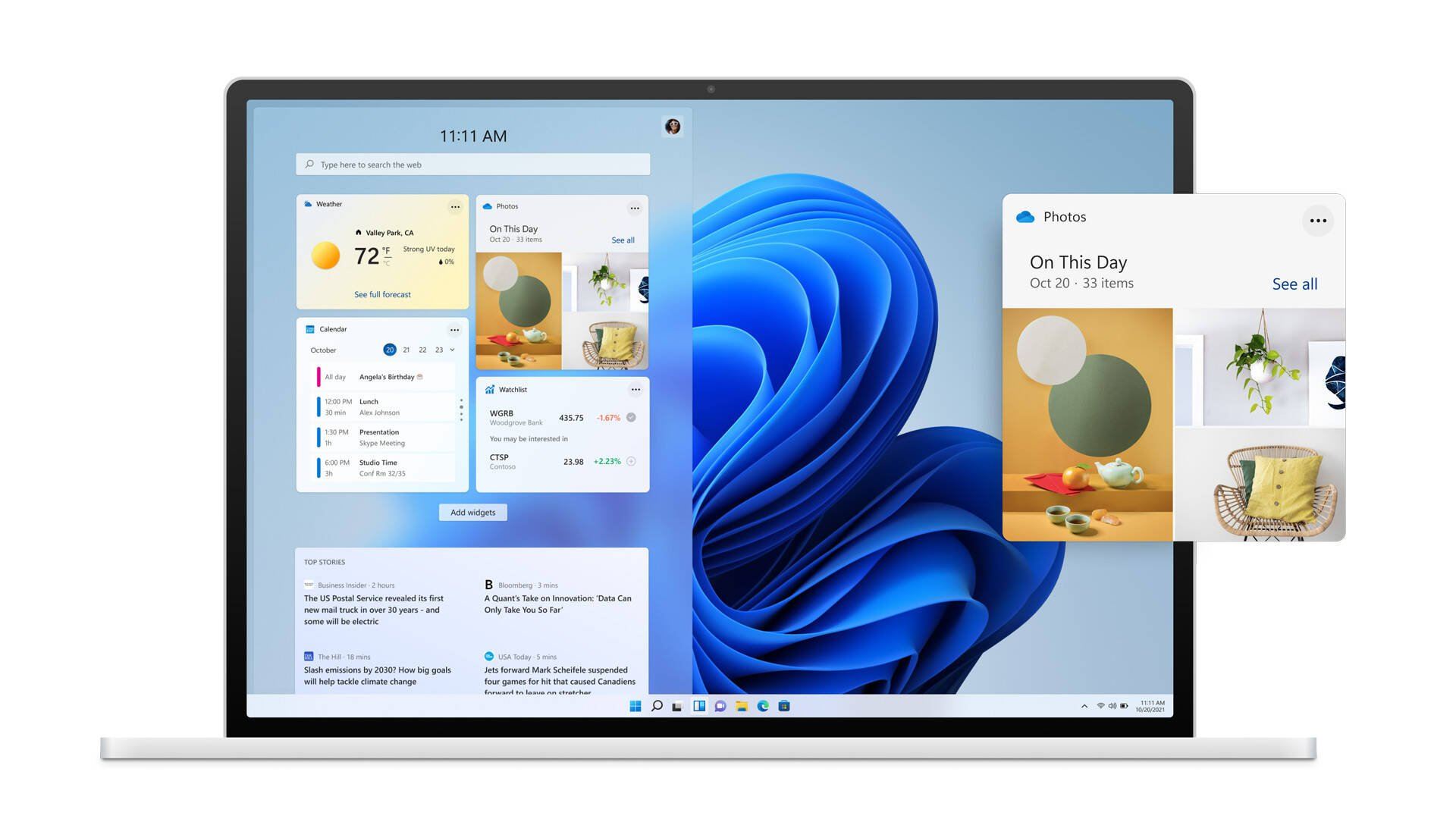
There are many reasons you might want to uninstall software or applications on your Windows 11 PC. You may want to free up disk space, remove programs you no longer use, or get rid of pre-installed apps that came with your PC.
Uninstall Applications on Windows 11
Depending on the application, there are several methods to remove it. If one method doesn’t work, you can try another. However, keep in mind that not all apps can be uninstalled using standard methods. For example, built-in apps like Microsoft Edge may require special commands to remove, and doing so could potentially cause issues with your system.
Get best offers : click here…
1. Uninstall an App Using the Start Menu
The simplest method works well for basic applications, especially those downloaded from the Microsoft Store.
Steps:
- Click the Start button.
- Find the app you want to remove. You may need to click All apps at the top-right to see a full list.
- Right-click the app and select Uninstall.
- If a prompt appears saying “This app and all associated data will be deleted,” click Uninstall to confirm.
For more complex programs, you may be redirected to the Control Panel to complete the removal process.
2. Uninstall an App Using the Control Panel
Some applications store settings in multiple locations on your system, including the Windows Registry. Using the Control Panel ensures these programs are removed properly.
Steps:
- Click the Search icon in the taskbar and type Control Panel.
- Open Control Panel and go to Programs → Programs and Features.
- Scroll through the list to find the program you want to uninstall.
- Click the program, then click Uninstall on the right. You can also right-click the program and choose Uninstall or double-click it.
- Follow the prompts in the uninstaller window. You may need to click Next, Continue, or confirm that the app can make changes to your device.
- Once the process is complete, click Finish.
3. Uninstall an App Using Windows Settings
A modern and convenient method is to use the Apps & Features section in Windows Settings.
Steps:
- Click the Start button and select the Settings gear icon.
- From the left-hand menu, select Apps.
- Open Apps & Features.
- Scroll to find the app you want to remove.
- Click the three dots next to the app and select Uninstall.
- Follow any additional prompts to complete the process.
Final Notes
- For pre-installed or system apps, uninstallation may not be possible using these methods. Advanced users may need command-line tools to remove them.
- Always make sure you save your work before uninstalling programs that might require a system restart.
- Using the proper uninstall method ensures that all associated files, settings, and registry entries are removed, keeping your system clean.




![[11.11 Offer]Buy Windows 11 key & Office 2021 key](https://affordablekey.com/wp-content/uploads/2023/11/Affordablekey-91.jpg)




