Windows 11 Pro Product Key: Easy Activation and Installation Guide in 2026

Windows 11 Pro Product Key: Easy Activation and Installation Guide
Windows 11 Pro is Microsoft’s latest operating system, offering advanced features for business users, professionals, and power users. To enjoy all its capabilities, a genuine Windows 11 Pro product key is required for activation. Without activation, you may face limitations such as restricted personalization options and periodic activation reminders.
In this guide, brought to you by affordablekey, we’ll cover everything you need to know about Windows 11 Pro product keys, including how to activate, install, and troubleshoot any activation issues.
Buy Only 10$
Why You Need a Windows 11 Pro Product Key
A Windows 11 Pro product key is a 25-character code used to activate your copy of Windows. Activation ensures that:
-
Your software is genuine and fully licensed
-
You receive regular updates and security patches
-
All features, including BitLocker, Remote Desktop, and Group Policy, are accessible
-
You avoid activation warnings and limited functionality
Without a genuine product key, Windows 11 Pro may operate in reduced mode, restricting personalization and certain security features.
Where to Get a Genuine Windows 11 Pro Product Key
You can obtain a legitimate product key from several sources:
-
Microsoft Official Store – Buying directly ensures authenticity.
-
Authorized Retailers – Trusted sellers offer genuine keys at competitive prices.
-
affordablekey – Reliable platform to purchase authentic Windows 11 Pro product keys at affordable rates.
⚠️ Avoid cracked or pirated keys, as they may lead to security vulnerabilities and legal issues.
Step-by-Step Guide to Installing Windows 11 Pro
Step 1: Check System Requirements
Before installation, ensure your PC meets Windows 11 Pro’s minimum requirements:
-
Processor: 1 GHz or faster, 2 cores, 64-bit compatible
-
RAM: 4 GB minimum
-
Storage: 64 GB or more
-
Graphics: DirectX 12 compatible GPU
-
TPM: Version 2.0 enabled
Step 2: Backup Your Data
Always backup your files before installation. Use an external drive, cloud storage, or built-in Windows Backup.
Step 3: Download Windows 11 Pro
-
Visit the official Microsoft website or trusted platforms like affordablekey.
-
Download the Windows 11 Pro ISO file or Media Creation Tool.
Step 4: Create a Bootable USB Drive
-
Use a 8GB or larger USB drive.
-
Run the Media Creation Tool to create a bootable installation USB.
-
Ensure all previous data on the USB drive is backed up, as it will be erased.
Step 5: Install Windows 11 Pro
-
Plug in the bootable USB and restart your PC.
-
Enter BIOS/UEFI settings (usually by pressing F2, F12, Del, or Esc during boot).
-
Set the USB drive as the primary boot device.
-
Save and exit BIOS/UEFI.
-
Follow the on-screen installation instructions.
How to Activate Windows 11 Pro with Product Key
After installation, activation is essential to unlock all features. Here’s how to do it:
Step 1: Open Activation Settings
-
Press Win + I → Go to Settings > System > Activation.
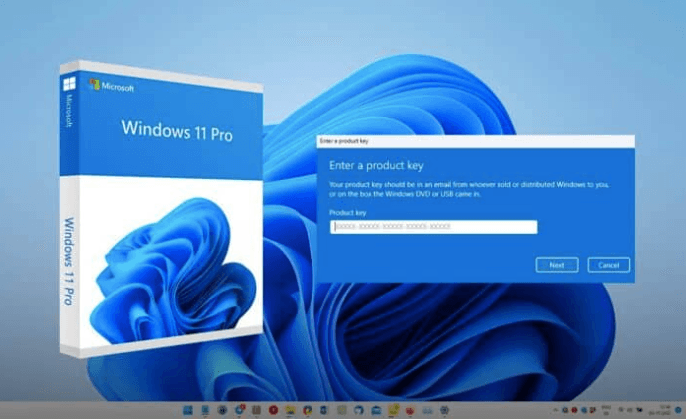
Step 2: Enter Product Key
-
Click Change product key → Enter your 25-character Windows 11 Pro product key.
-
Click Next → Activate.
Step 3: Verify Activation
-
Check the activation status in Settings > System > Activation.
-
You should see “Windows is activated with a digital license” if successful.
Tip: Keep a copy of your product key in a secure place for future reinstallation or troubleshooting.
Troubleshooting Common Activation Issues
Even with a genuine product key, you may encounter issues. Here are common problems and fixes:
1. Product Key Not Working
-
Double-check for typos.
-
Ensure you’re using a Windows 11 Pro key (not Home edition).
-
Contact your seller or affordablekey if issues persist.
2. Digital License Not Detected
-
Sign in with the Microsoft account used to purchase Windows.
-
Go to Settings > Update & Security > Activation Troubleshooter.
3. Internet Connection Errors
-
Activation requires an active internet connection.
-
Restart your router and reconnect, then try activation again.
4. Hardware Changes Causing Deactivation
-
Significant hardware changes (like motherboard replacement) can trigger deactivation.
-
Use Activation Troubleshooter and link your digital license to your Microsoft account.
Tips for Maintaining a Genuine Windows 11 Pro License
-
Always buy keys from trusted sources like affordablekey.
-
Keep your product key safe and do not share it publicly.
-
Avoid using pirated or cracked keys.
-
Regularly update Windows 11 Pro to receive security and feature updates.
-
Link your license to a Microsoft account for easy reactivation after hardware changes.
FAQs About Windows 11 Pro Product Key
Q1. Can I use a Windows 10 Pro key for Windows 11 Pro?
A: Yes, in most cases, a genuine Windows 10 Pro key can activate Windows 11 Pro.
Q2. Is it safe to buy Windows 11 Pro keys from third-party sellers?
A: Only buy from trusted and authorized sellers, like affordablekey, to ensure authenticity and avoid fraud.
Q3. How do I check if my Windows 11 Pro is activated?
A: Go to Settings > System > Activation. You should see “Windows is activated with a digital license.”
Q4. What happens if I don’t activate Windows 11 Pro?
A: You’ll face limitations such as restricted personalization options, activation reminders, and inability to receive some updates.
Q5. Can I transfer my Windows 11 Pro product key to another PC?
A: Yes, if it’s a retail license. OEM licenses are tied to the original hardware and cannot be transferred.
Conclusion
Activating Windows 11 Pro with a genuine product key is essential to unlock all features and ensure security and reliability. With this step-by-step guide from affordablekey, you can easily install, activate, and manage your Windows 11 Pro license without any hassle.