












Top 10 tips for windows 11 use laptop And more Bonus tips

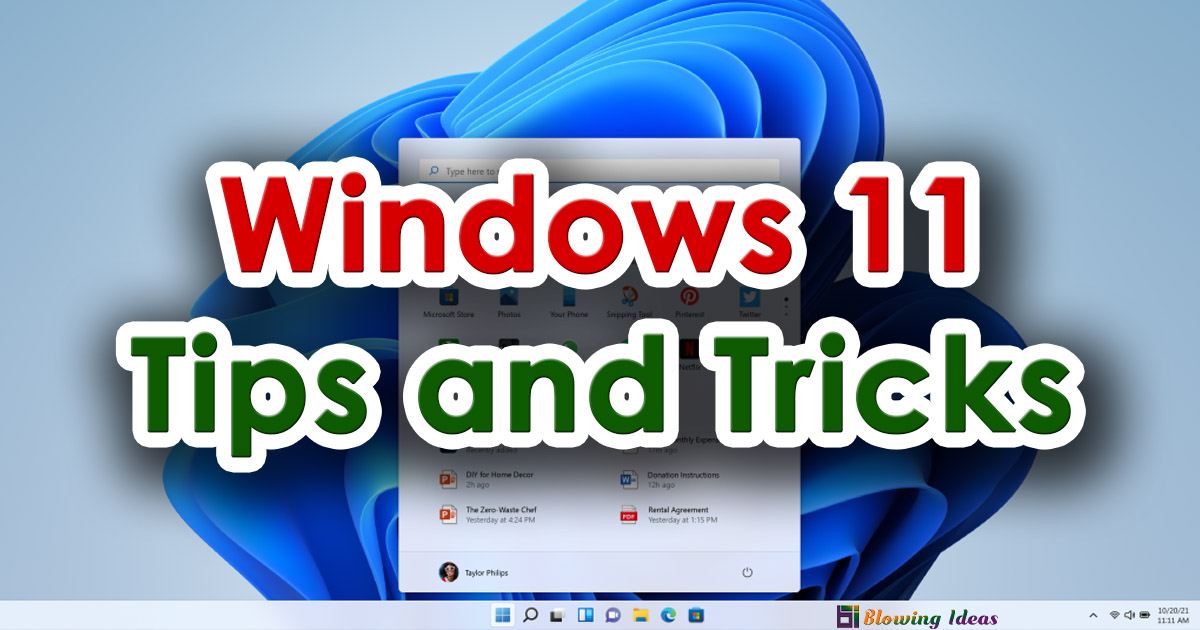
Windows 11, Microsoft’s newest operating system, introduces a modern design, smoother performance, and powerful productivity tools that redefine the way you use your computer. With its refreshed Start menu, improved multitasking features, stronger security system, and better cloud integration, Windows 11 is built to deliver a faster, smarter, and more intuitive experience.
Top Tips for windows 11 Maximize Your Experience
Whether you’re a student managing assignments, a professional handling daily workloads, or a casual user browsing, streaming, and gaming, Windows 11 offers features designed to enhance efficiency and comfort. From advanced window management with Snap Layouts to seamless integration with Microsoft services, this operating system helps you stay organized, focused, and secure.
1. Keep Your System Updated: Regular updates are the backbone of a smooth Windows 11 experience. They include important security patches, bug fixes, and performance enhancements. Keeping your system up to date ensures faster operation and protects against potential threats.
2. Make the Most of Cloud Storage: Windows 11 integrates seamlessly with cloud storage solutions like OneDrive. Store files safely online and access them from any device. This not only protects your important documents but also allows you to work remotely without worry.
3. Explore Built-In Apps: Windows 11 comes with a variety of productivity apps such as Microsoft To Do, Calendar, and Snipping Tool. Using these built-in apps can simplify tasks, save time, and help you stay organized.
4. Organize Your Files Efficiently: Use the enhanced file management system in Windows 11 to categorize and organize your documents. Creating folders, using tags, and setting priorities ensures you can quickly find what you need without clutter.
5. Take Advantage of Touch Screen Features: If your device has a touch screen, use it to its full potential. Gestures, swipes, and touch controls make navigation faster and more intuitive, especially for drawing, note-taking, or creative tasks.
6. Use a Password Manager: Strong, unique passwords are essential for security. Windows 11 supports password managers that help you create, store, and manage credentials securely. Enable two-factor authentication wherever possible.
7. Back Up Your Data Regularly: Never risk losing your files. Back up important documents to an external drive or cloud storage. Automatic daily backups reduce the chance of data loss and provide peace of mind.
8. Protect Your Laptop with Antivirus Software: Install reliable antivirus software and keep it updated. Regular scans protect your system from viruses, malware, ransomware, and other online threats.
9. Customize Your Laptop: Windows 11 allows extensive customization. Personalize your desktop with themes, widgets, and layouts that suit your workflow. A well-organized workspace increases productivity and makes daily tasks more enjoyable.
10. Safeguard Your Laptop Physically: Invest in a laptop sleeve or case to protect your device from dust, scratches, or accidental spills. Physical protection ensures your laptop remains in top condition for years to come.
Bonus Tips to Boost Your Windows 11 Productivity
-
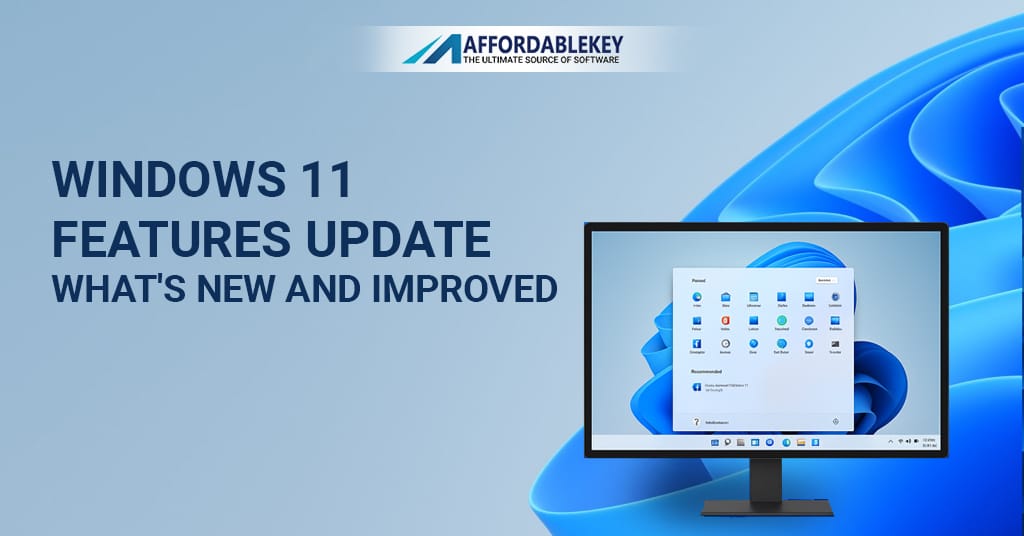
Discover the Start Menu: Windows 11 features a redesigned Start menu. Pin your favorite apps and explore shortcuts to save time.
-
Use the Action Center: Stay on top of notifications, messages, and system alerts effortlessly.
-
Enable Cortana: Voice commands with Cortana make searching and task management hands-free.
-
Set Up Windows Hello: Log in quickly and securely with facial recognition or a fingerprint.
-
Try Windows Ink: Draw, annotate, or take notes directly on your screen—ideal for creatives and students.
-
Use Virtual Desktops: Organize your work across multiple desktops for better focus and efficiency.
-
Explore Microsoft Edge: Experience a fast, secure browser with features optimized for Windows 11.
-
Switch Easily with Task View: Multitasking becomes seamless when switching between open apps.
-
Play on the Go with Xbox App: Stream Xbox games directly to your laptop anytime.






![[11.11 Offer]Buy Windows 11 key & Office 2021 key](https://affordablekey.com/wp-content/uploads/2023/11/Affordablekey-91.jpg)




