How to Switch Microsoft Accounts on PC in 2026 Safely Without Losing Files

How to Switch Microsoft Accounts on PC
Sometimes you may need to switch How to Switch Microsoft Accounts on PC —for example, to access a different OneDrive storage, use another Office 365 subscription, or sign into the Windows Store with a different account. Switching accounts is a common need for users who manage multiple work, school, or personal Microsoft accounts on a single device.
More Microsoft app Cheap Price : Check Out..
This guide from AffordableKey will show you how to switch Microsoft accounts on Windows, step by step, while keeping your files and settings intact. You’ll also learn tips to ensure a smooth transition and avoid common mistakes like losing OneDrive data or access to apps.
Step 1: Open Windows Settings
- Press Windows + I to open Settings, or click the Start menu → Settings.
- Navigate to Accounts
Step 2: Access Your Microsoft Account
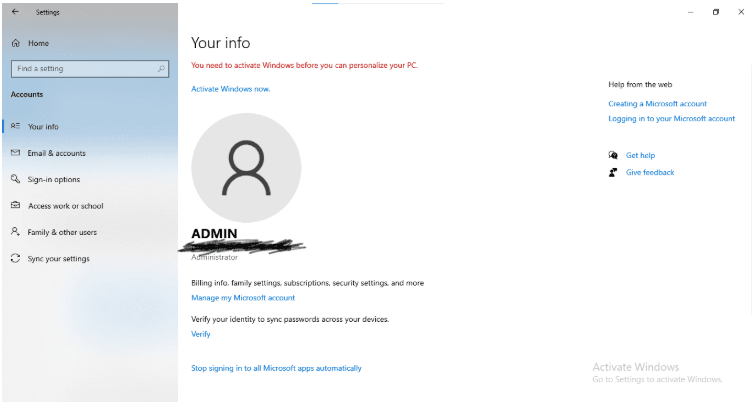
- In the Accounts section, click Your info.
- Here, you’ll see the currently signed-in Microsoft account.
Step 3: Switch to a Local Account (Optional)
How to Switch Microsoft Accounts on PC Guide:
If you want to sign in with a different Microsoft account, it’s safest to switch to a local account first:
- Click Sign in with a local account instead.
- Follow the prompts to create a local account (username + password).
- Sign out and sign back in using your local account.
Step 4: Sign in with a Different Microsoft Account
- Go back to Settings → Accounts → Your info.
- Click Sign in with a Microsoft account instead.
- Enter the email and password of the Microsoft account you want to switch to.
- Follow any on-screen prompts to verify identity.
Step 5: Sync and Confirm Settings
- After signing in, Windows will sync settings, apps, and files associated with the new account.
- Check OneDrive, Office apps, and Windows Store to ensure everything is linked correctly.
 Tips for Smooth Account Switching
- Back up important files from your old account before switching.
- Check OneDrive storage to make sure nothing is lost during sync.
- If using a work or school account, verify permissions to avoid access issues.
- Use AffordableKey guides to manage How to Switch Microsoft Accounts on PC.
FAQ (Frequently Asked Questions)
Q1: Can I have multiple Microsoft accounts on one PC?
Yes, you can switch between accounts, but Windows only allows one primary sign-in account at a time. Other accounts can be added for apps and OneDrive.
Q2: Will switching accounts delete my files?
No, switching accounts won’t delete files stored locally, but synced files on OneDrive may differ depending on the account. Always back up important data.
Q3: Can I use Microsoft Office with a different account?
Yes, you can sign in to Office apps (Word, Excel, PowerPoint) with a different Microsoft account to access separate subscriptions or licenses.
Q4: Do I need to disconnect OneDrive before switching accounts?
It’s recommended to save and sync files before signing out to avoid data loss or conflicts between accounts.
Q5: Will my Windows settings reset when I switch accounts?
Some settings, like personalization, themes, and app preferences, are tied to the Microsoft account. Switching accounts may require reconfiguring these settings.
Q6: Can I switch back to my original account easily?
Yes, you can sign out and log back in with your previous Microsoft account at any time. Make sure files are synced to OneDrive before switching.
Q7: Is it safe to switch accounts frequently?
Yes, but frequent switching may cause confusion with synced files or app licenses. Using AffordableKey tips, you can manage multiple accounts safely without losing data.
Final Thoughts
Switching Microsoft accounts on a Windows PC is simple and convenient when done correctly. By following this guide, you can manage multiple accounts, access different subscriptions, and keep your files safe.