












How to Change Your Default Browser in Windows 11

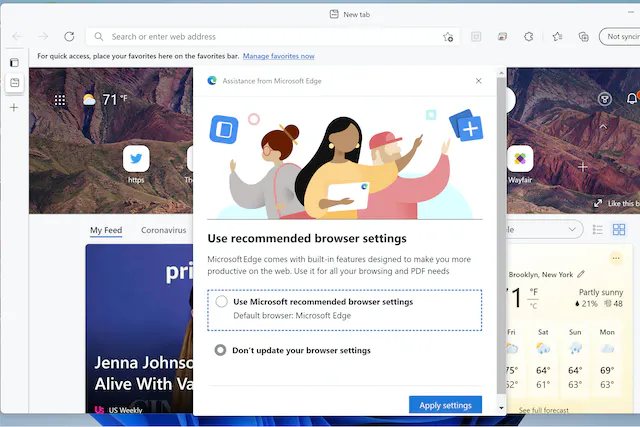
After upgrading to Default Browser in Windows 11, you may have noticed that clicking on a website link, PDF file, or other web content automatically opens Microsoft Edge. This is because Microsoft has made Edge the default browser in Windows 11 and actively promotes its use. Even if you had another browser set as default before the upgrade, Windows 11 may override it and open Edge instead.
If you prefer using a different browser, such as Google Chrome, Mozilla Firefox, or Brave, you can change the default browser manually. However, unlike in Windows 10, the process in Windows 11 is more complicated and less intuitive.
Switching Your Default Browser in Windows 11
If your preferred browser does not prompt you to become the default when first opened—or if it does but only directs you to the Default Apps page—you can change it directly in Windows settings. Here’s how:
-
Open Settings → Apps → Default Apps.
-
Scroll through the list or use the search box to find your preferred browser (for example, Chrome, Firefox, or Brave).
-
Click on your browser, and at the top of the page, click Set as default.
-
Below, you’ll see a list of file types and link types associated with web browsers, including:
.HTM, .HTML, .HTTP, .HTTPS,.PDF
-
Click Set default for each type you want your chosen browser to handle. You can also set them individually if needed.
Handling Edge-Specific Links
Even after changing your default browser, certain Windows features, like the Widgets pane, may continue opening links in Edge. For example, clicking on news articles or weather links in the Widgets panel often launches Edge regardless of your default browser.
You can manage this to some extent:
-
Manually set defaults for link types:
-
Go to Settings → Apps → Default Apps.
-
Scroll to Choose defaults by link type.
-
Search for Microsoft Edge, then see if other browsers can be selected for specific links.
-
-
Use EdgeDeflector:
EdgeDeflector is a third-party application that intercepts Edge-specific links and redirects them to your preferred browser. The latest version, v1.2.3.0, is compatible with Windows 11. While it works for most hyperlinks, some links in the Widgets pane may still not display fully correctly.
Tips and Things to Keep in Mind
-
Default Browser in Windows 11 makes switching default browsers more complex than Windows 10.
-
Some system-level links, especially in Widgets or certain built-in apps, may still open in Edge.
-
EdgeDeflector can help redirect these links, but it might not work for all system features.
-
Ensure all critical link types, such as
.HTML,.HTM,HTTP,HTTPS, and.PDF, are set to your preferred browser for full browsing control. -
Restart your browser after changing defaults to ensure all settings take effect.
By following these steps, you can make your preferred Default Browser in Windows 11 the default for most web activity. While Microsoft Edge may still open some system-specific links, you’ll have control over the majority of your browsing experience, ensuring you use the browser you prefer for daily tasks.




![[11.11 Offer]Buy Windows 11 key & Office 2021 key](https://affordablekey.com/wp-content/uploads/2023/11/Affordablekey-91.jpg)




